
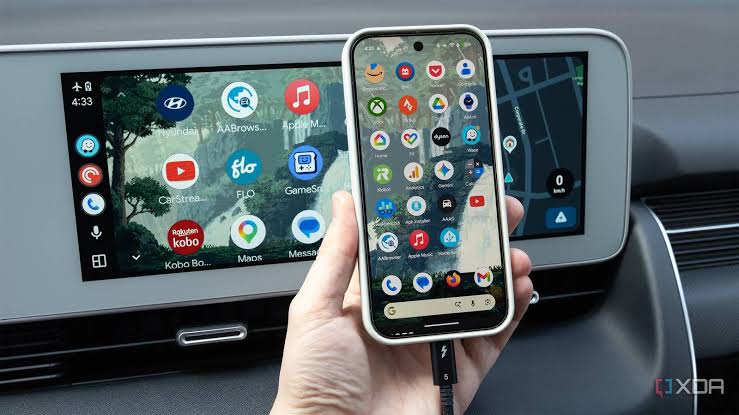
Android Auto problems often appear after phone updates, permission changes, app conflicts, or cable wear. The fastest approach is to confirm compatibility, update the phone software, check permissions, and reconnect the vehicle from scratch. Testing with another phone can then show whether the fault follows the device or stays with the car.
Update the Phone Before Changing Hardware
Install pending Android system updates and updates for apps involved in navigation, calling, and media playback. Restart the phone afterward because some background services do not fully refresh until rebooted.
Clear temporary connection problems by removing the vehicle from Android Auto’s saved-car list and deleting the phone from the vehicle. Reconnect only after both sides have restarted.
General vehicle repair resources may be useful when a connectivity issue appears alongside other car problems, but phone-side troubleshooting should remain separate at first.
Review Android Auto Permissions
Android Auto may need access to the microphone, contacts, phone functions, notifications, and location features. A permission denied during initial setup can later appear as a missing feature rather than a clear error message.
Battery-saving settings can also interrupt background communication. Some phones aggressively restrict apps when the screen is off, which may affect wireless connections.
| Issue | Phone-Side Possibility | Useful Check |
|---|---|---|
| App won’t launch | Permission blocked | Review app access |
| Maps freeze | Location restriction | Check location settings |
| Music stops | Battery optimization | Allow background activity |
| Wireless won’t connect | Wi-Fi/Bluetooth state | Restart both radios |
Test the Cable and Vehicle Connection
For wired Android Auto, try a short, known-good data cable. Cheap or worn cables may charge normally while failing to maintain stable data communication.
Vehicles with several USB ports may support Android Auto through only one. Broader connected vehicle information can help frame how many systems now rely on phone integration, but the owner’s manual remains the best source for identifying the correct port.
If another compatible phone works through the same port and cable, the original phone becomes the main suspect. If both phones fail, investigate the vehicle side.
Watch for Electrical Symptoms
Connection problems can sometimes appear after battery replacement, electrical repair, or a period of low battery voltage. Infotainment systems may restart, lose saved devices, or behave inconsistently until their settings are restored.
Where multiple electrical features fail together, car wiring information may provide broader background while you decide whether the issue goes beyond Android Auto. A failed USB module, damaged connector, or wiring problem can require hands-on testing.
Do not dismantle dashboard components solely because the app is failing. Software and permission checks are safer and faster first steps.
Mistakes That Waste Troubleshooting Time
Repeatedly reinstalling apps without testing the cable can waste time. Likewise, replacing several cables without checking whether the correct USB port is being used leaves an obvious possibility unresolved.
It’s also easy to blame Android Auto for problems caused by a specific music or navigation app. Test basic Android Auto functions first, then isolate individual apps if only one feature is misbehaving.
Frequently Asked Questions
Why does Android Auto start and then close?
Possible causes include unstable USB data, app restrictions, outdated software, or a phone-specific conflict. Restart the phone, update its software, check permissions, and test another cable before changing vehicle hardware.
Can battery-saving mode affect Android Auto?
Yes. Aggressive power-saving settings can restrict background processes needed by connected apps. If problems appear only with the screen off or after several minutes, review battery optimization settings for relevant applications.
Why won’t wireless Android Auto connect automatically?
Automatic connection depends on Bluetooth, Wi-Fi, saved pairing information, and supported hardware. Delete the existing connection, restart both devices, confirm Bluetooth and Wi-Fi are enabled, then pair the phone again.
Isolate the Phone From the Vehicle
Android Auto becomes easier to diagnose when you separate phone problems from car problems. Update software, confirm permissions, test the cable, and compare another compatible phone. A failure that stays with the same vehicle after those checks points more strongly toward the USB interface, infotainment software, or related electrical hardware.